Product tour

Follow the editorial workflow through the PressAI workspace.

Each workspace has a clear operational role—from monitoring sources and reviewing evidence to checking quality, preparing search signals and controlling publishing.

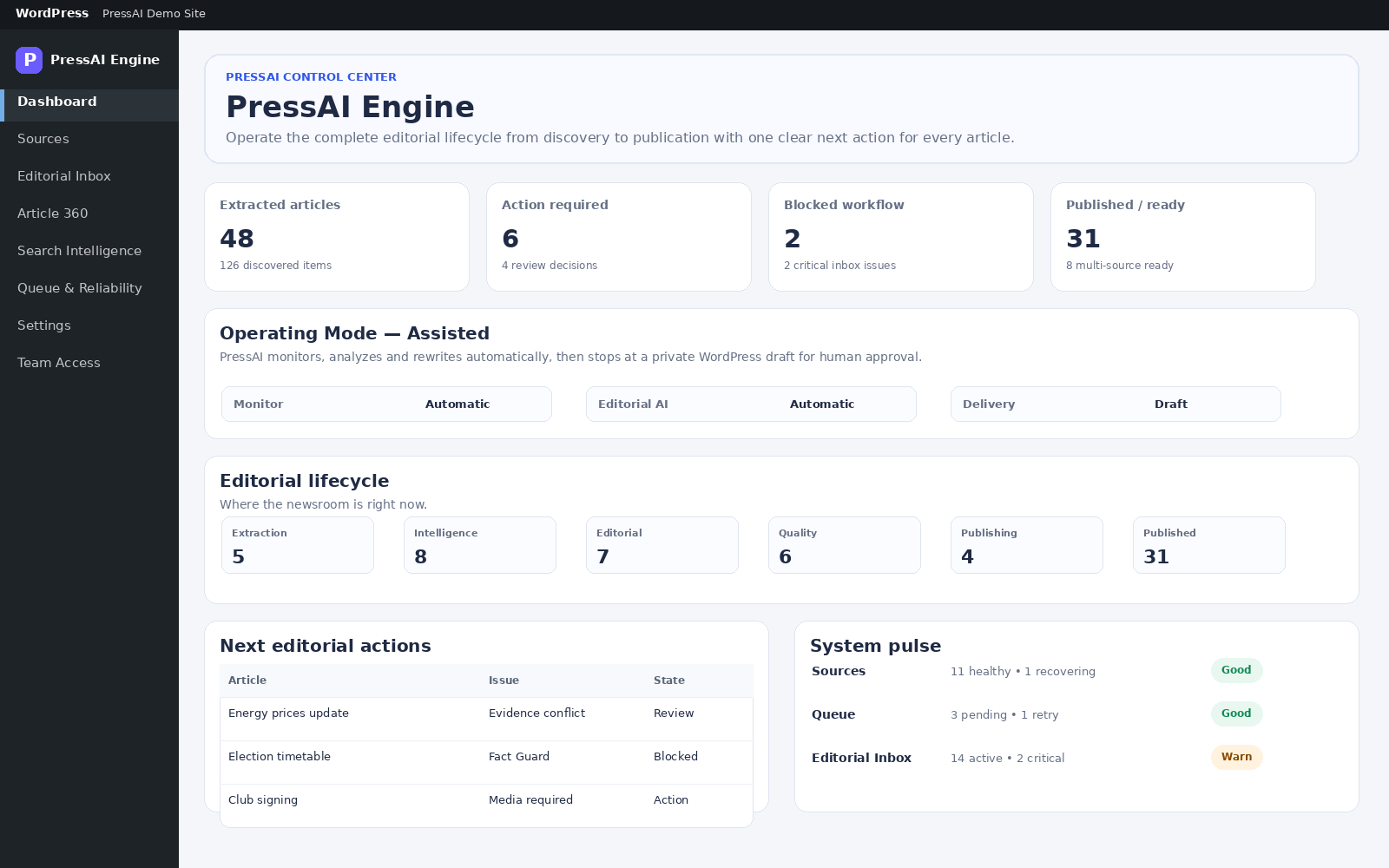
PressAI Control Center interface illustration
Interface illustration with sample data.
01 · Overview

Control Center

Start with workload, source health, editorial state and the actions that need attention. The dashboard is designed to answer one question quickly: what should the team handle next?

  • See operational status across the editorial flow.
  • Identify review items and blockers before they pile up.
  • Move directly into the workspace that needs action.
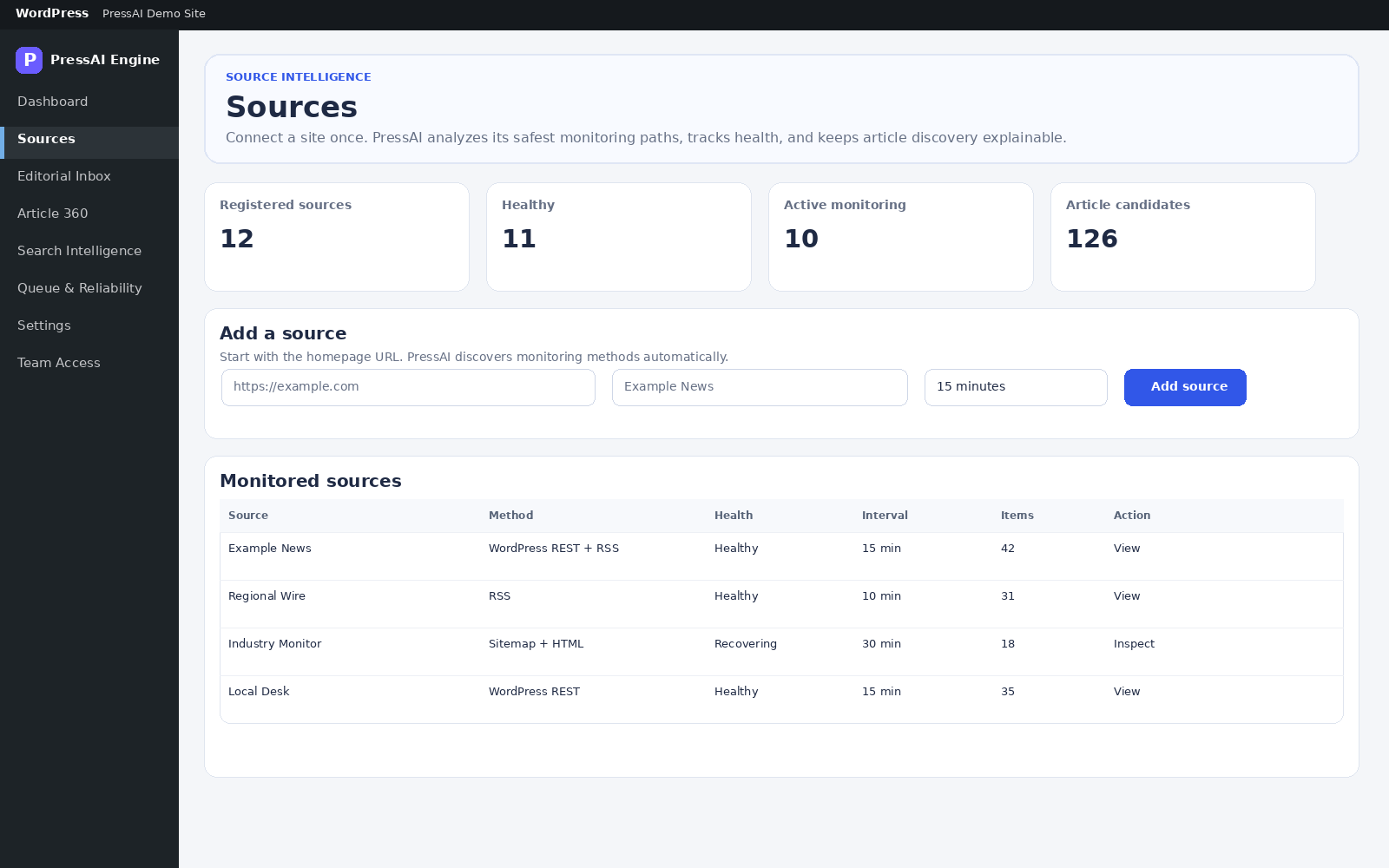
PressAI Sources interface illustration
Interface illustration with sample data.
02 · Monitor

Sources

Register trusted sources and keep their discovery path, status and health visible instead of treating monitoring as a black box.

  • Work with supported RSS/Atom, WordPress REST, sitemap and HTML discovery paths.
  • Inspect source health and recovery state.
  • Keep source-level monitoring decisions explicit.
Read the Sources guide →
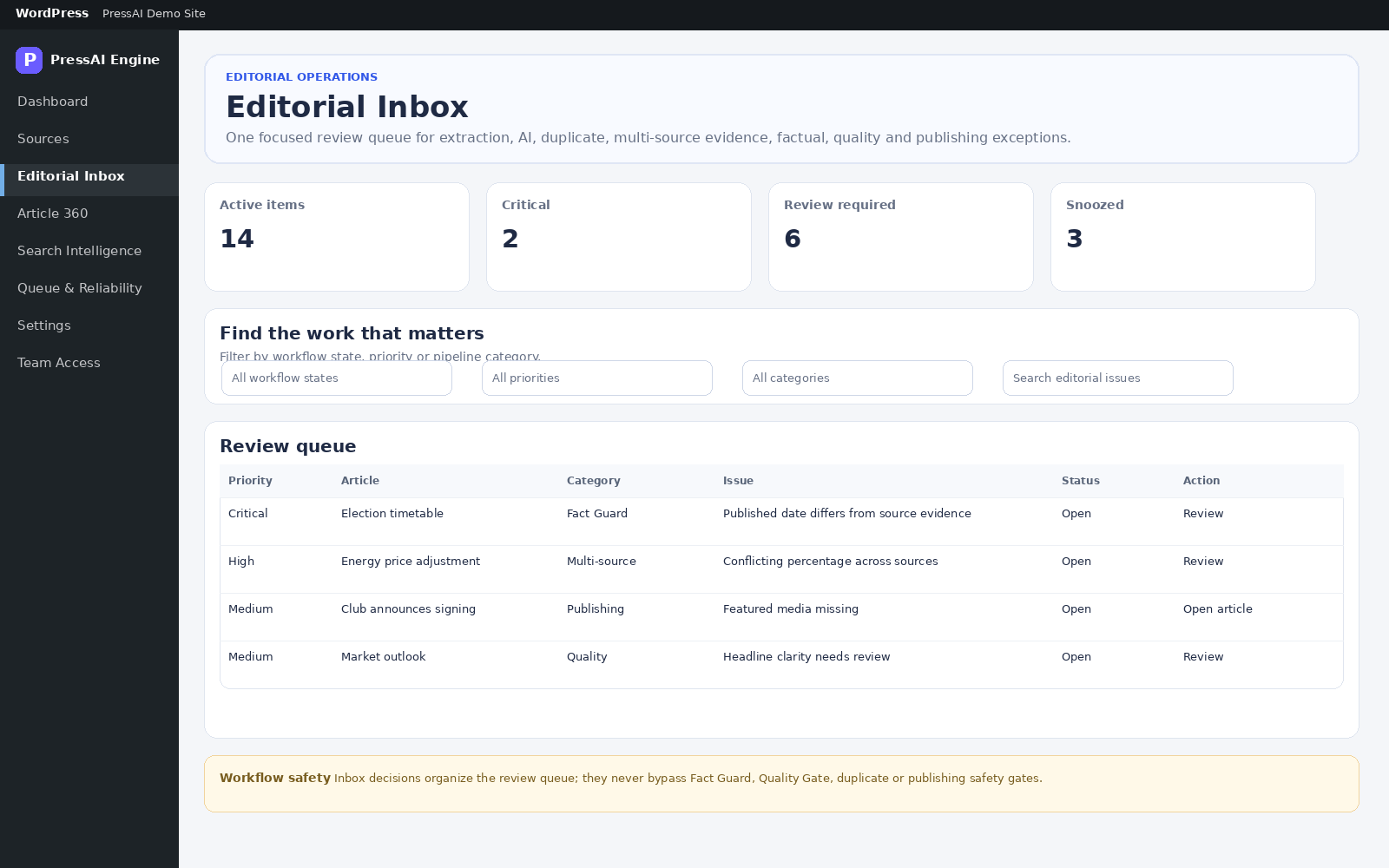
PressAI Editorial Inbox interface illustration
Interface illustration with sample review items.
03 · Review

Editorial Inbox

Bring the exceptions that deserve a human decision into one focused queue: extraction issues, duplicate review, evidence conflicts, quality blockers and publishing exceptions.

Read the Editorial Inbox guide →
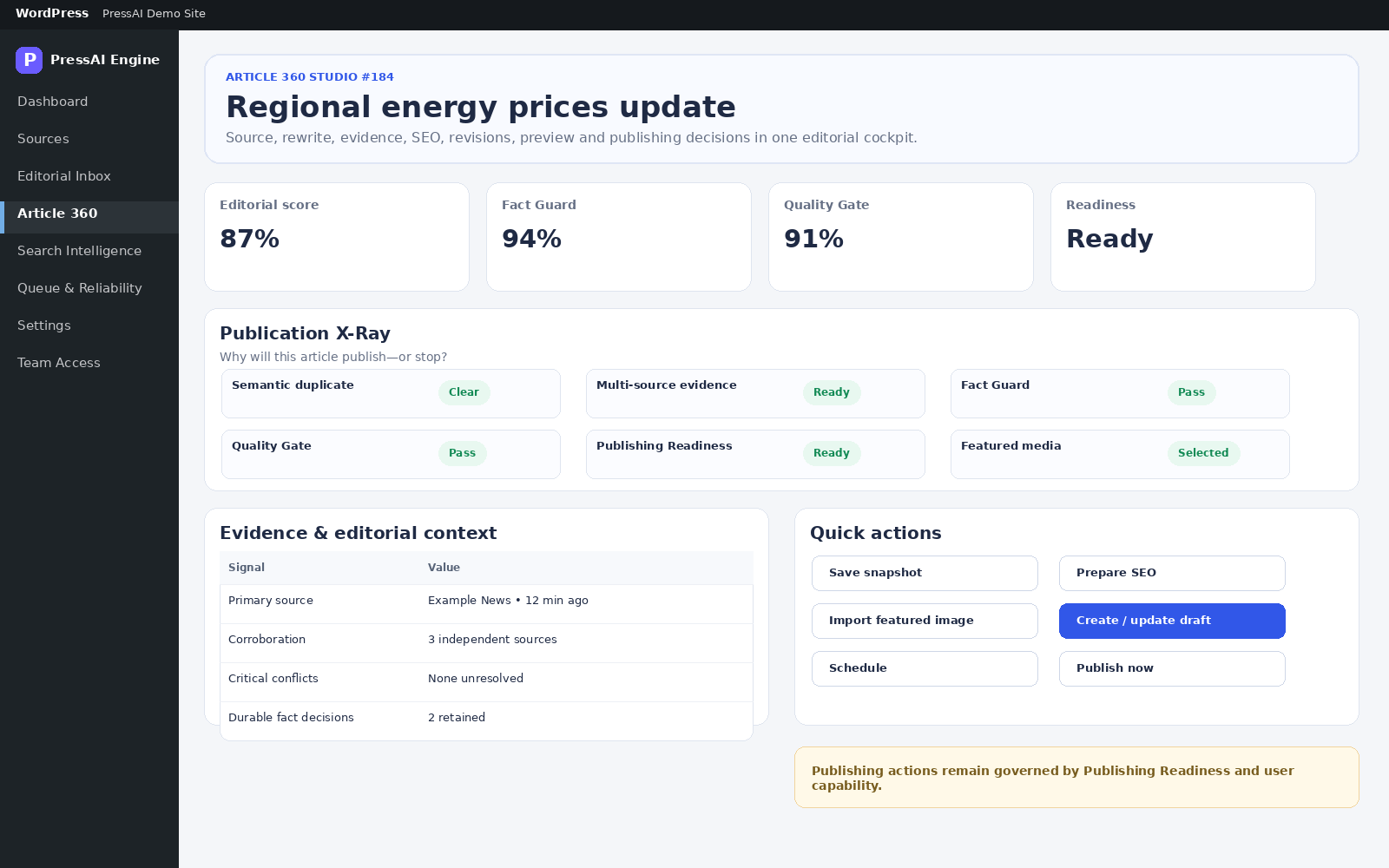
PressAI Article 360 interface illustration
Interface illustration with sample article data.
04 · Decide

Article 360

Review one article with the context that matters still attached: source evidence, revisions, Fact Guard, quality state, search preparation, media and publishing readiness.

Read the Article 360 guide →
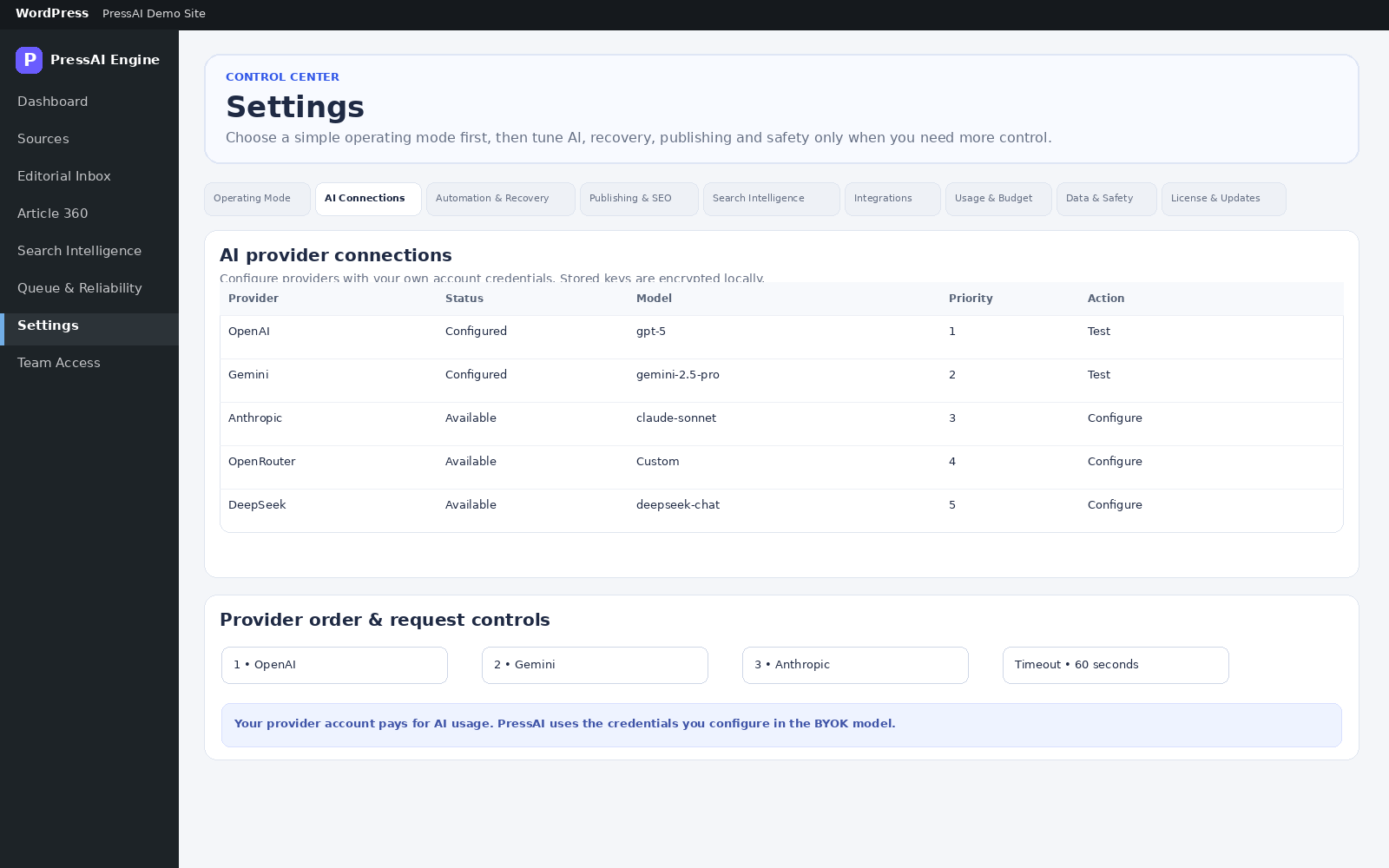
PressAI AI Connections interface illustration
Interface illustration with sample provider configuration.
06 · Connect

AI Connections

Use your own provider accounts and keep provider order, models and request controls inside PressAI. AI assists the editorial workflow; it does not replace your publishing rules.

Read the AI Connections guide →
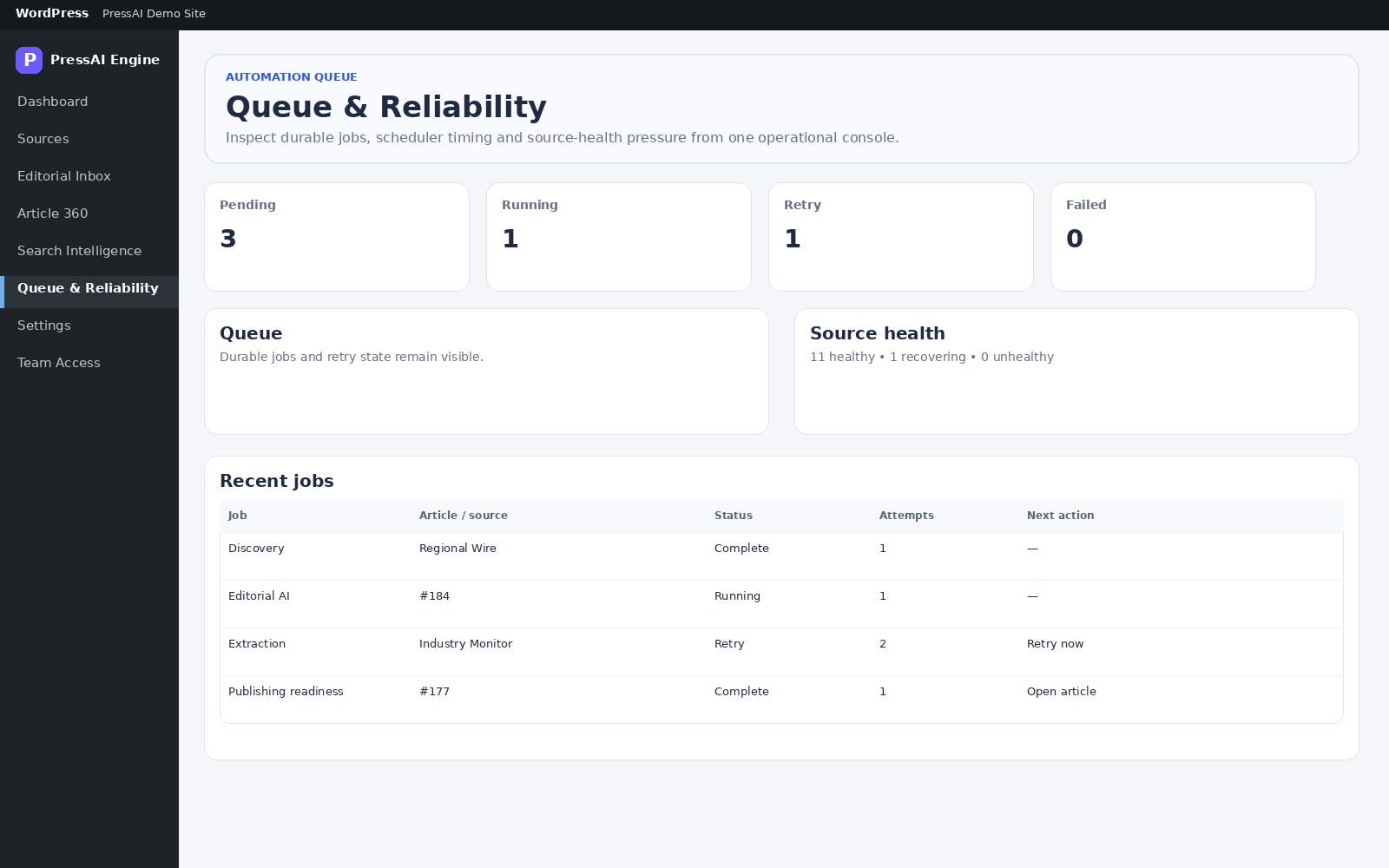
PressAI Queue and Reliability interface illustration
Interface illustration with sample operational data.
07 · Operate

Queue & Reliability

Inspect background work, retries and failures instead of guessing what automation is doing. Operational visibility makes recovery safer and more targeted.

Read the Queue guide →
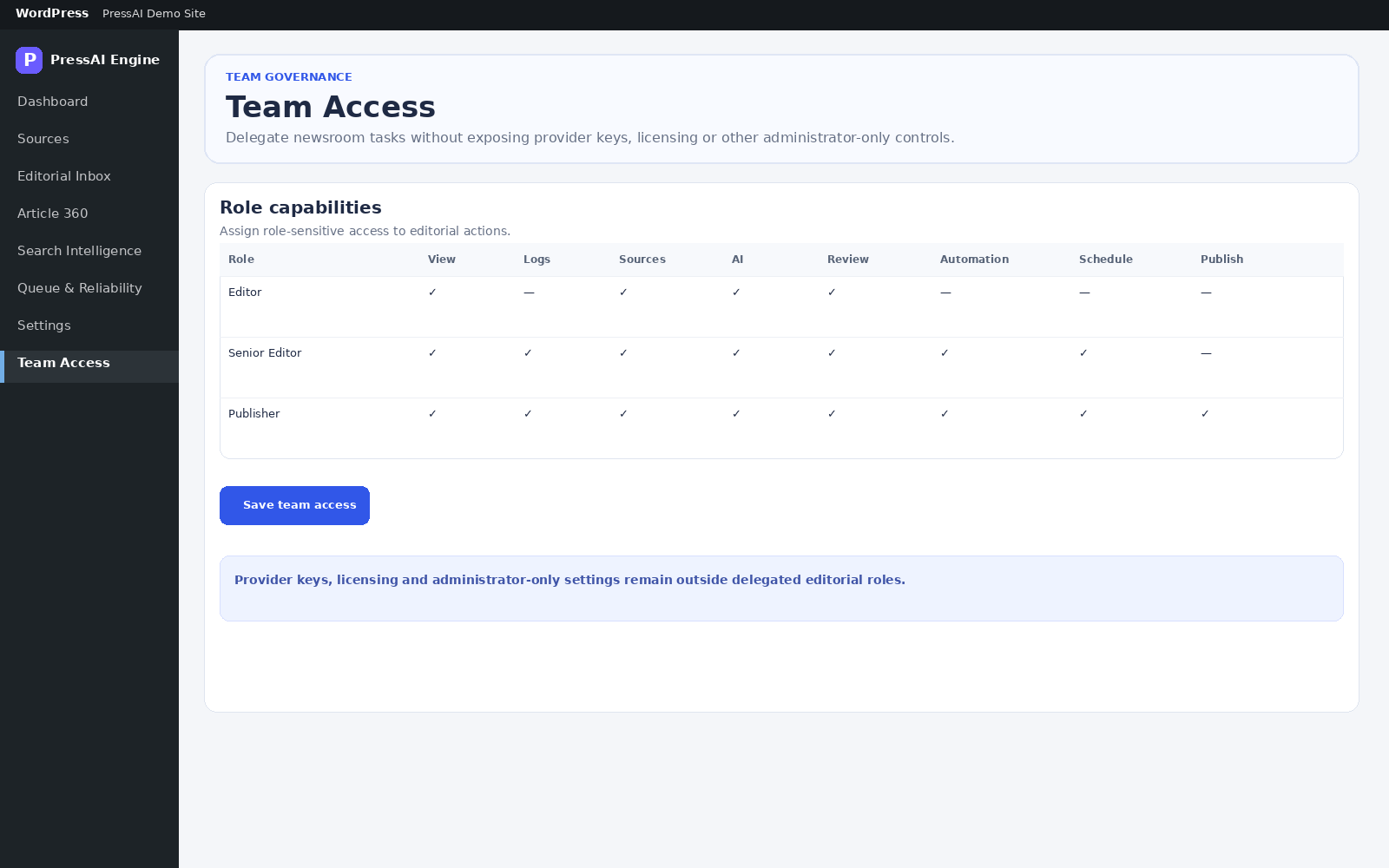
PressAI Team Access interface illustration
Interface illustration with sample roles.
08 · Govern

Team Access

Separate editorial responsibilities with granular WordPress capabilities so team members can perform their work without receiving broad administrator access.

Read the Team Access guide →
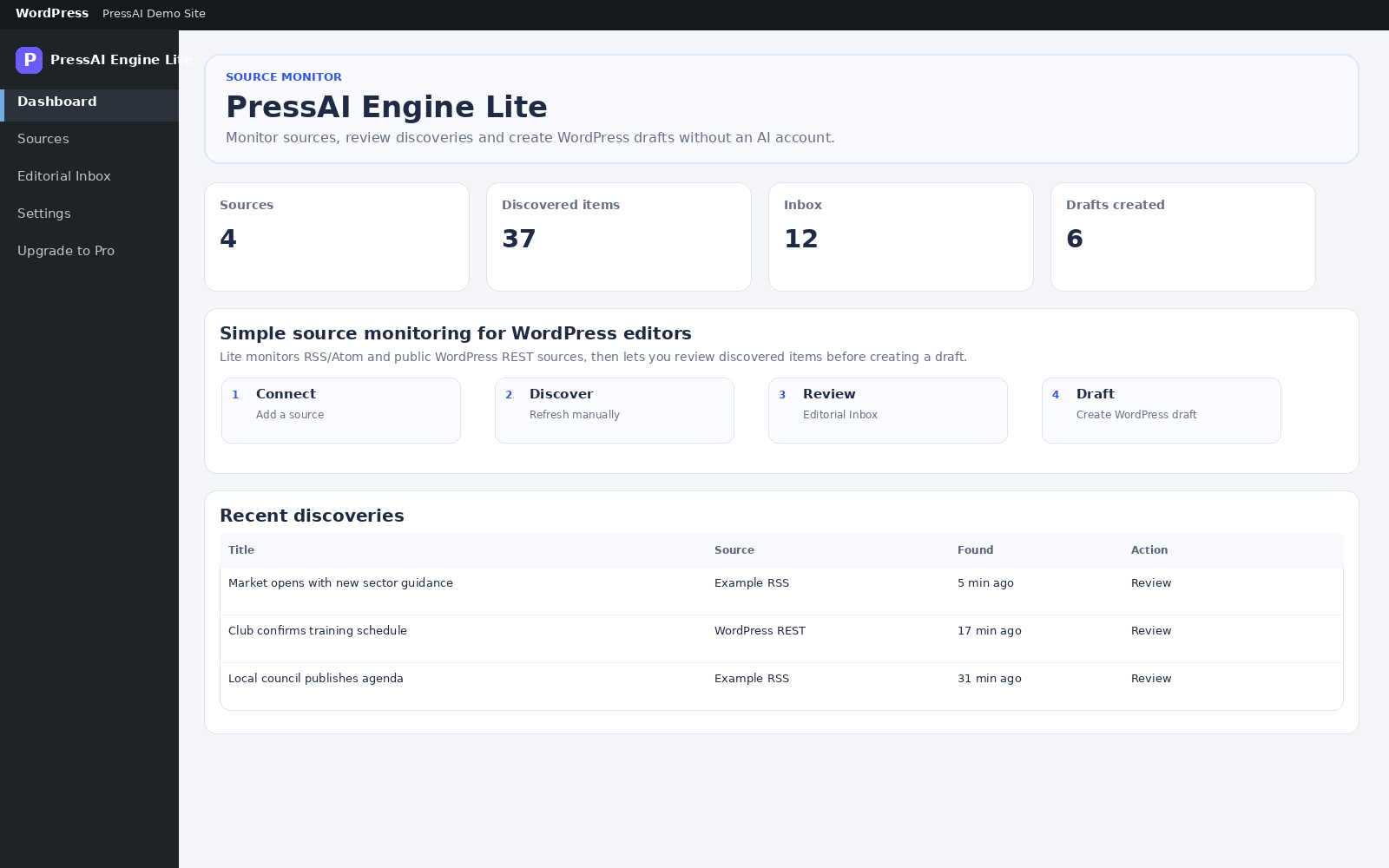
PressAI Lite dashboard interface illustration
Interface illustration with sample data.
09 · Lite

Lite Dashboard

Use the free edition for supported source monitoring and manual editorial curation without requiring an AI account.

See what Lite includes →
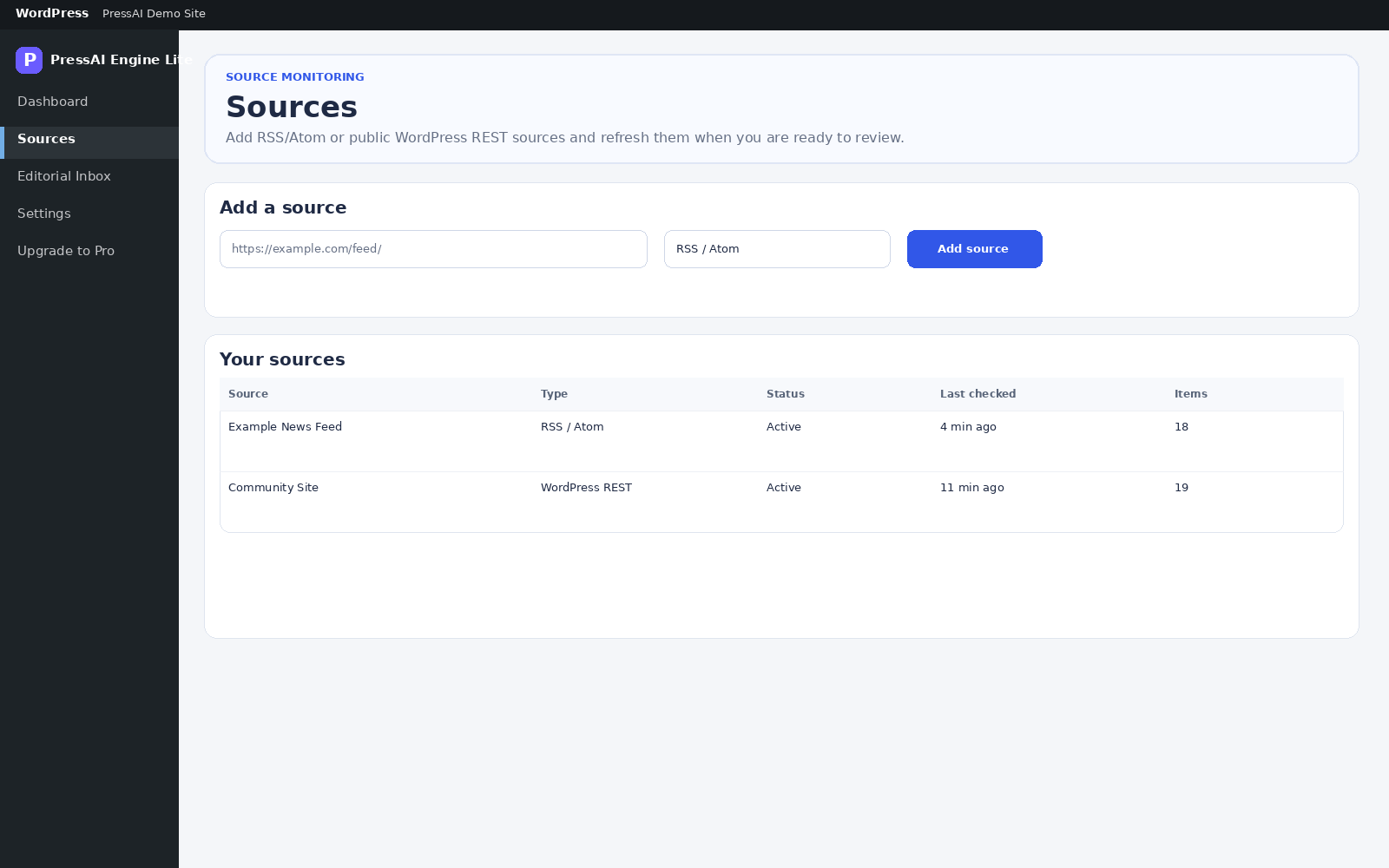
PressAI Lite Sources interface illustration
Interface illustration with sample sources.
10 · Lite sources

Lite Sources

Add supported RSS/Atom and public WordPress REST sources, review discovered content and move selected material into WordPress manually.

Read the Lite vs Pro guide →

Ready to understand the workflow end to end?

Continue with the operating flow or jump directly into the step-by-step documentation.